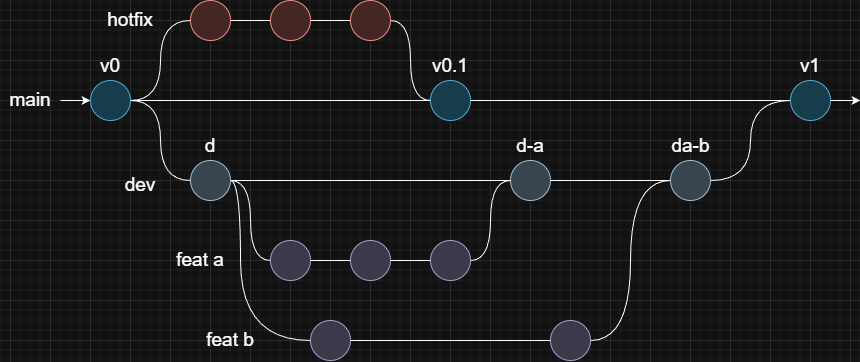
A Git branch is an independent line of development within a repository. Branches allow you to isolate changes and work on them independently.
In a Git repository, there is a default branch (usually called main or master). Beyond that, you can create other branches to develop new features, fix bugs, test ideas, or work on updates without affecting the main codebase.
What is a branch reference?
A branch reference is a pointer in Git that refers to a specific commit.
It's a file named after the branch and stored in .git/refs/heads/.
The file contains the hash of the latest commit on that branch.
When you make a new commit, Git updates this file with the new commit hash.
Creating a new branch simply means creating a new file in .git/refs/heads/.
You can even do this manually by creating a file and writing a commit hash inside it. The file name becomes the branch name, and it starts from the commit you specified.
What is HEAD?
HEAD is a pointer in Git that represents your current position in the repository.
It's a file named HEAD in .git/ that usually points to the branch reference of the current branch.
When you switch branches, Git updates HEAD to point to the new branch reference.
Attached HEAD:
This is the normal state where HEAD points to a branch reference. Any new commits you make are added to that branch, and HEAD moves forward along with it.
Detached HEAD:
This occurs when HEAD points directly to a specific commit hash instead of a branch reference. In this state, new commits aren't associated with any branch, and you might need to create a new branch to save your work.
You can also use it instead of <commit_hash>:
HEAD: The current (latest) commit.
HEAD~<n>: The commit n steps before HEAD (e.g., HEAD~2).
Merging in Git is the process of combining changes from one branch into another. The changes from the source branch are integrated into the target branch.
git merge <Name>: Merge changes from the specified branch into the current branch.
--squash - Combine all commits from the merged branch into the staging area of the current branch.
Allows committing all changes as a single commit to keep history clean.
If you encounter conflicts or issues during a merge, you can use git merge --abort to cancel the process or resolve them.
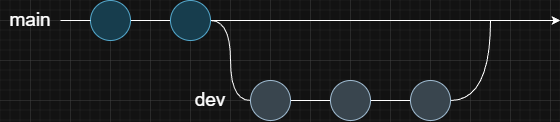
This type of merge occurs when no new commits have been made on the target branch since the source branch was created.
In such cases, Git simply moves the target branch pointer forward to the latest commit on the source branch without creating a new merge commit. This results in a linear commit history.
git merge --no-ff <Name>: Always create a merge commit even when a fast-forward is possible.
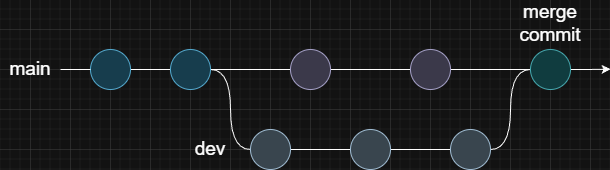
This type of merge occurs when both branches have new commits.
In such cases, Git compares the changes made in both branches relative to their common ancestor and tries to combine them automatically.
If both branches modify the same lines, Git can't decide which version to keep. This is called a merge conflict. When conflicts occur, Git waits you to resolve them manually.
Resolving merge conflicts:
Git reports a merge conflict and shows which files are affected.
The conflicted files contain special markers showing differences between branches.
<<<<<<< HEADyour content on current branch=======incoming content from the other branch>>>>>>> dev
Edit the files to decide which changes to keep.
You can choose one version or combine parts of both.
Cherry-picking in Git means taking specific commits from one branch and applying them to another branch without merging the entire branch.
git cherry-pick <commit_hash>...: Apply the changes from a specific commit (from another branch) to the current branch.
Cherry-picking creates new commits with different commit IDs. This can lead to duplicate commits if the process is not
managed carefully and the branches are merged later.