Rebasing
Rebasing rewrites commit history, which creates conflicts and makes collaboration harder on shared or public branches.
Integrating Changes
What is it?
Let's say you start working on a new feature by creating a
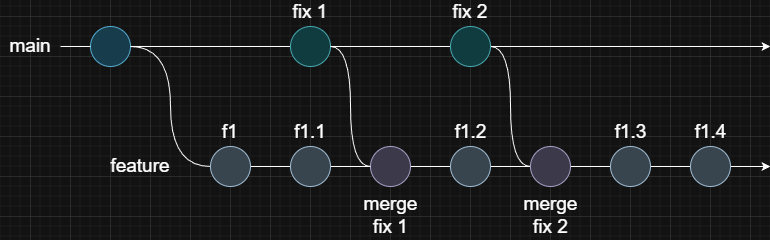
featurebranch. While you're developing, your teammates merge their completed work, such as bug fixes, into themainbranch. To keep yourfeaturebranch up to date and avoid working with known issues, you need to bring those changes in.Yes, you can do this just by merging the
mainbranch into yourfeaturebranch. That's it, but...
What is the problem?
As you keep working, more bug fixes and updates might get merged into the
mainbranch that you'll want to include again in yourfeaturebranch. You can keep merging to stay up to date, but imagine themainbranch is very active and gets such updates several times a day. If your feature takes a while to finish, your branch history can quickly fill up with unnecessary merge commits that don't really say anything about the actual work you're doing.
The solution:
git rebase <branch_name>: Reapply your current branch's commits on top of the specified branch (integrate its latest changes).If conflicts appear, you can either resolve them or cancel the process with
git rebase --abort. When resolving conflicts, don't commit as usual. Instead, usegit rebase --continueto move forward.
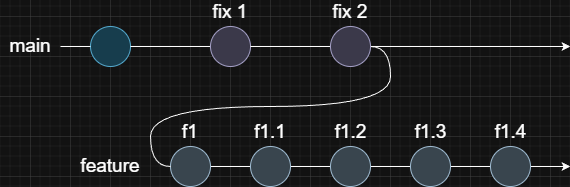
Git rebasing solves the problem by reapplying your changes on top of another branch.
It rebuilds your work on the source branch's latest version. It's like you just created the branch again, but this time you already have your changes in place.
Interactive Rebase (History Editing)
Interactive rebase lets you modify a branch's commit history by editing, reordering, squashing, or removing commits.
git rebase -i <commit_hash>: Initialize the interactive rebase process for the history that comes after the given commit.Here is the full flow of the process:
-
Git opens the interactive editor showing a list of commits and their actions (the default action is
pick). -
Choose an action for each commit.
Choosing an action means changing the default action to something else.
Some available actions:
pick- Use the commit as is.reword- Edit the commit message.edit- Modify the commit content.squash- Combine this commit with the previous one and edit the message.fixup- Combine with the previous commit but discard this message.drop- Remove the commit completely.- You can also reorder commits by simply moving their lines up or down.
-
Save the file and close the editor.
-
Handle the selected actions.
Each action has its own process:
reword- Opens an editor to edit the commit message.edit- Pauses the rebase so you can modify (add/edit/delete) the content. After making changes, stage them and rungit rebase --continue.squash- Opens an editor to make a merging message.
If any conflicts occur, resolve them and continue with
git rebase --continue, or cancel the process withgit rebase --abort. -
When you finish handling all the requested actions, you'll have a rewritten commit history.
-